
Rather than add contacts to a Rungopher campaign via a CSV, you may draw them directly from your Salesforce instance. Rungopher uses Salesforce campaigns to gather participant information. In addition to uploading any conversation history to the corresponding Salesforce contact or lead, Rungopher can upload conversation results such as the conversation status, or whether a participant opted out, back into a Salesforce record. However you may need to create a new field on a salesforce object, in order to store this information.
Additionally, some conversations may require additional input fields to operate, such as the URL of the tracked weblink the gopher will send interested participants to. New salesforce fields will need to be added in order to provide this input to Rungopher.
Campaign Member status configuration
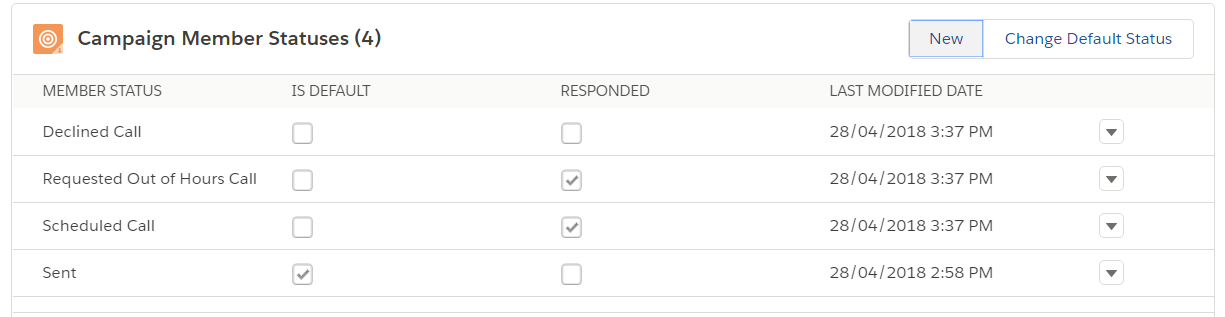
Each rungopher conversation has a conversation status - such as declined, email verified, or call scheduled. These rungopher conversation status values are best stored in the campaign member status for each salesforce campaign member.
- Review Salesforce's instructions on how to setup campaign member status here
- Your Salesforce admin should add campaign member status to the campaign page layouts
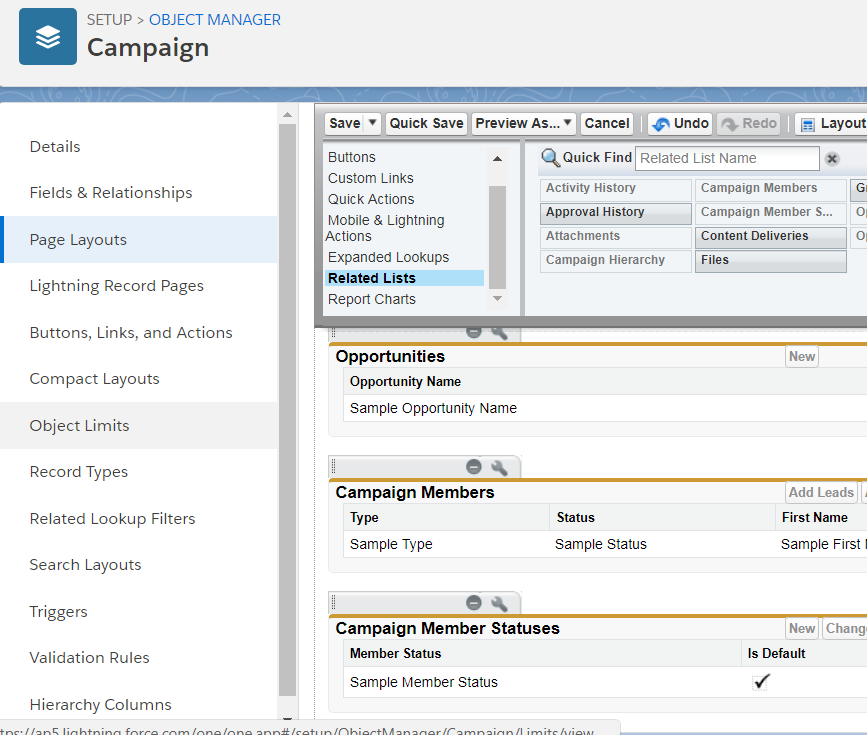
- The RunGopher conversation status will automatically be added in Salesforce as campaigns are created.
Fields to Add to Salesforce
Go to Setup/Object Manager, and add the following fields to the corresponding Salesforce object.
Contact:
| Field Label | Field Name | API Name | Data Type | Default Value / Formula |
|---|---|---|---|---|
| SMS Opt out | SMS_Opt_out | SMS_Opt_out__c | Checkbox | Unchecked |
Campaign:
| Field Label | Field Name | API Name | Data Type | Default Value / Formula |
|---|---|---|---|---|
| CampaignBaseURL1 | CampaignBaseURL1 | CampaignBaseURL1__c | URL |
Campaign Member:
| Field Label | Field Name | API Name | Data Type | Default Value / Formula |
|---|---|---|---|---|
| SMS Opt out | SMS_opt_out | SMS_opt_out__c | Checkbox | Unchecked |
| Upgrade amount | Upgrade_amount | Upgrade_amount__c | Number | 0 |
| URL1 Clicks | URL1_Clicks | URL1_Clicks__c | Number | 0 |
| StaticURL1 | StaticURL1 | StaticURL1__c | Formula | Campaign.CampaignBaseURL1__c |
| PURL1 | PURL1 | PURL1__c | Formula | Campaign.CampaignBaseURL1__c & "?cid=" & BLANKVALUE (ContactId, LeadId) |
Notes:
- the format of the PURL1 should mimic the format of the landing page's URL. In this example we have assumed your landing page will accept either the salesforce contact id, or the lead id; producing URLs of the form http://baseURL?cid=12345 . You may need to adjust this formula to suit your own landing page.
Comments
0 comments
Please sign in to leave a comment.