
The Salesforce to Rungopher integration works via the Salesforce API, so you will need to have that enabled for your organisation.
1. Connect Salesforce to Rungopher
In Rungopher, navigate to Account information, then select 'Link to Salesforce'.
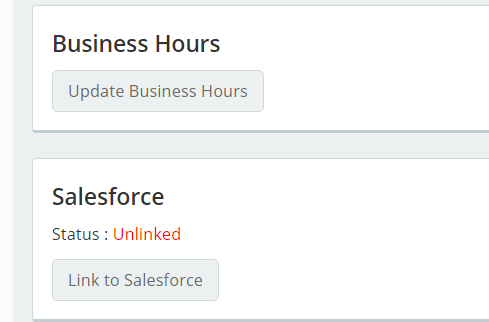
Choose a login that will have the ability to update all contacts and leads in your campaign. This lets Rungopher upload conversation histories and write data back into those contacts.
2. Add contacts or leads to your Salesforce campaign
Rungopher uses campaigns within Salesforce to determine the contacts you'd like to include in the rungopher conversation. You can use a Salesforce report to segment your data appropriately.
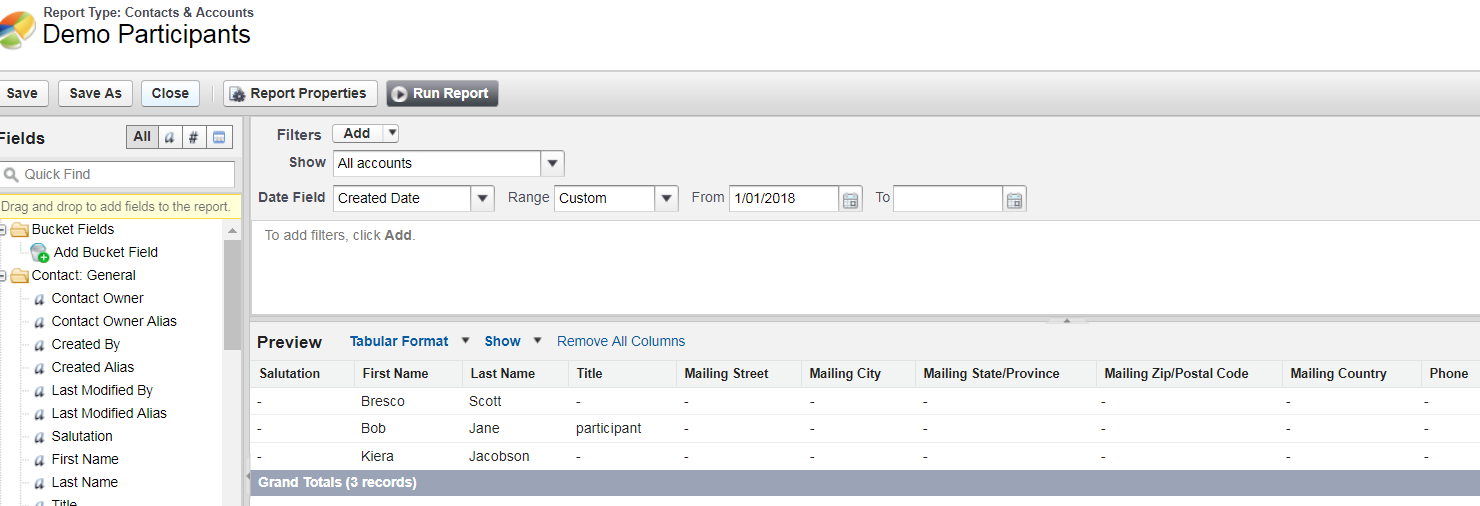
After running the report, you can add these contacts to a salesforce campaign.
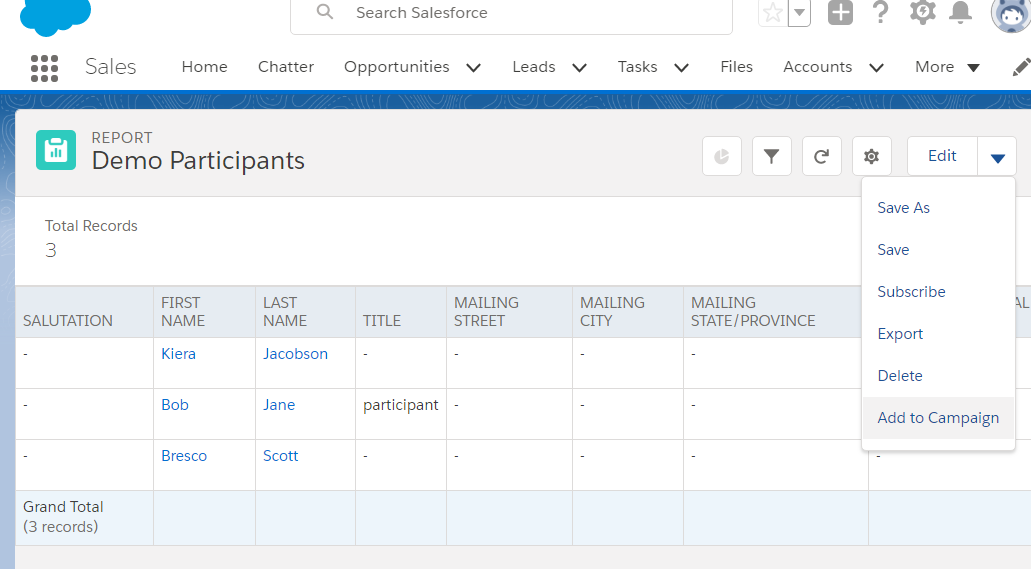
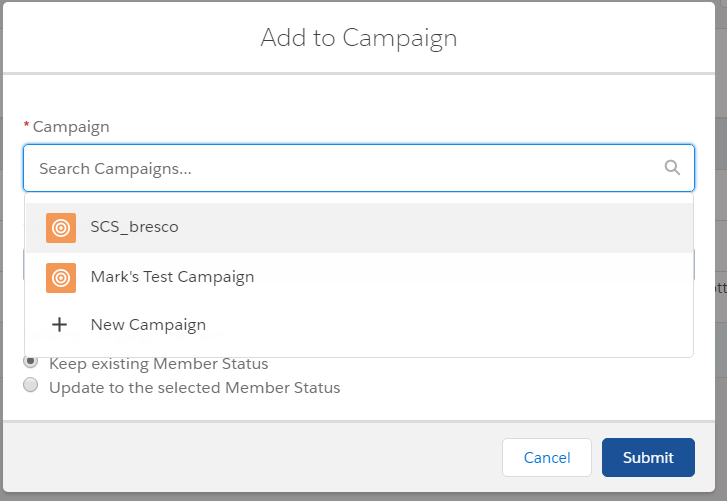
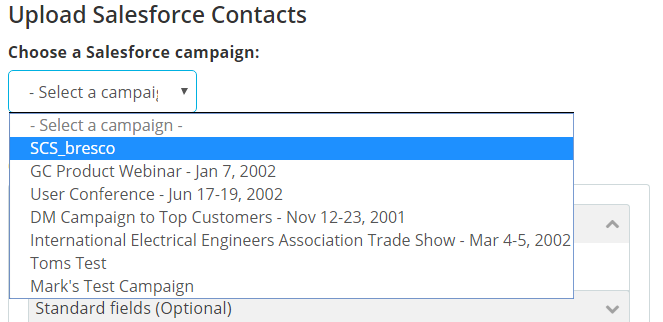
3. Select a Salesforce Campaign
Once you've created your Rungopher campaign, you can Add Contacts. Now hit upload from Salesforce.
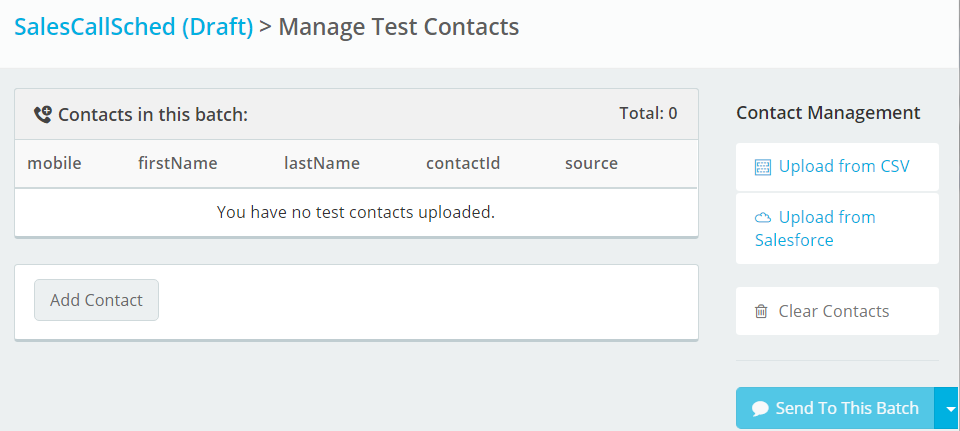
On the next page, choose the Salesforce campaign
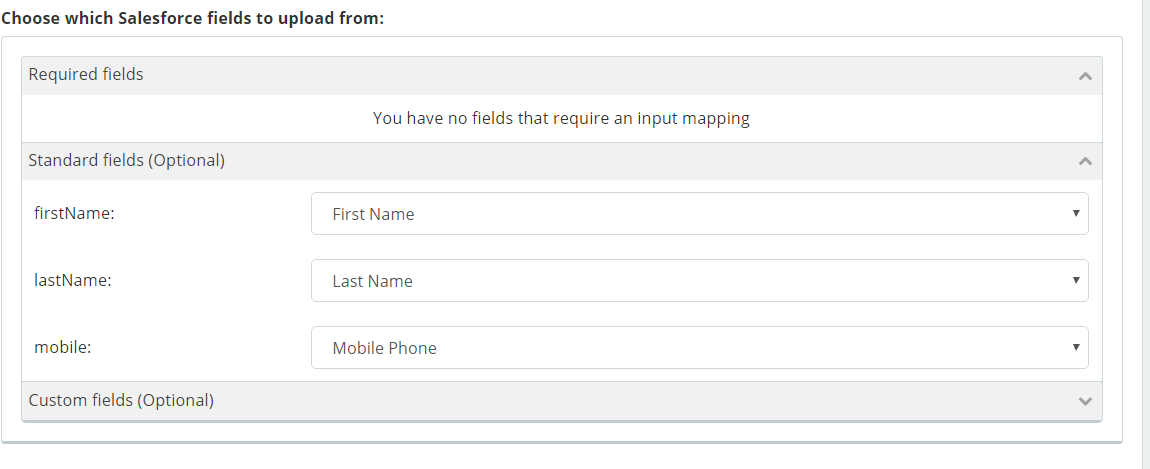
4. Which Salesforce fields should Rungopher read from?
Select the Salesforce fields that will provide input data for the conversation. You can choose fields from Salesforce Contacts, Leads or Campaign Members.
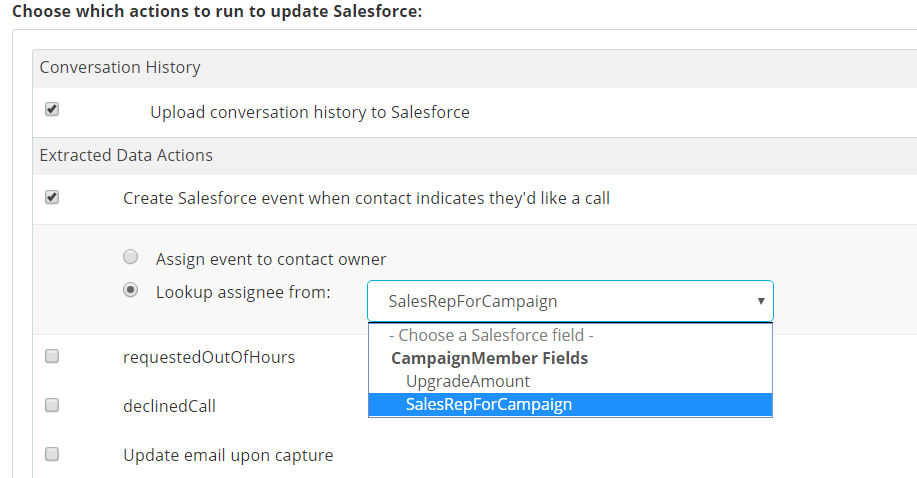
5. Which Salesforce fields should Rungopher write to?
As conversations progress, results such as a participants new email address, or whether they will be attending your event are able to be uploaded into Salesforce. This also lets you decide whether you want conversation history uploaded to each contact, or which sales rep will receive calendar events when someone tries to schedule a call.
6. Preview, upload, then start your campaign
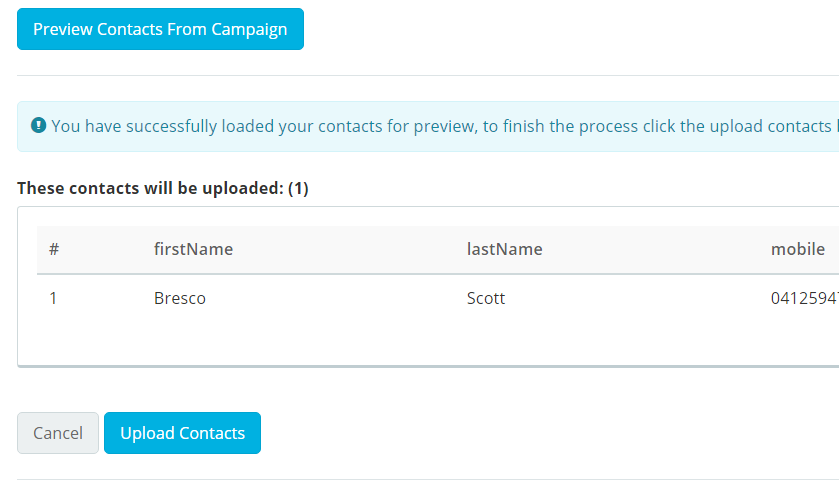
Preview the contacts that will be loaded from the Salesforce Campaign. If you're happy, hit upload. Then you can commence your Rungopher campaign as normal. Salesforce will be automatically updated with any of the results you selected in Step 5.
Comments
0 comments
Please sign in to leave a comment.